
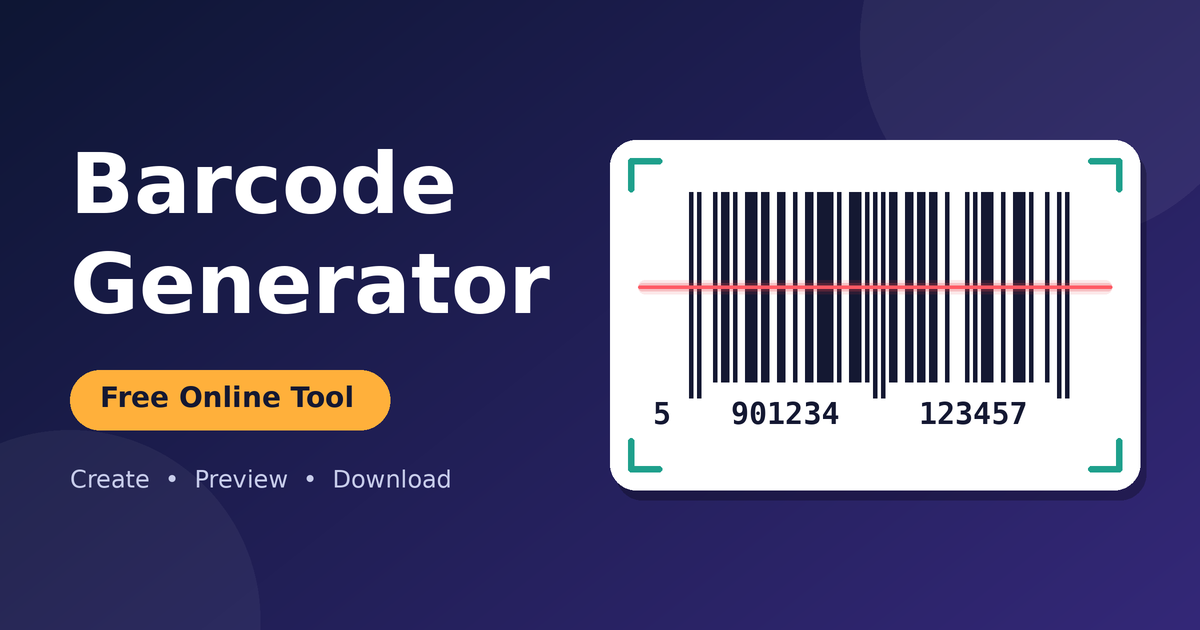
Barcodes are everywhere: on product packs in shops, on shipping cartons, on warehouse shelves, and on library books. If you sell products, manage stock, or print labels, you will sooner or later need to create one. In this guide you will learn what a barcode is, which barcode format to choose, and how to create and download a barcode image in seconds with the free UtiliVox Barcode Generator.
What Is a Barcode?
A barcode is a pattern of vertical bars and spaces that stores data (numbers or text) in a form a scanner can read quickly. When a scanner reads the pattern, it converts the bars back into the original value and sends it to a computer, a point-of-sale system, or an inventory app. This makes checkout, stock counting, and parcel tracking faster and far less error-prone than typing values by hand.
Each barcode format (also called a symbology) has its own rules about which characters it can hold, how long the value can be, and where it is used. Choosing the right format is the most important step.
About the UtiliVox Barcode Generator
The UtiliVox Barcode Generator is a free, browser-based tool that creates barcode images for retail products, business labels, shipping, and inventory. You type your value, pick a format, adjust the look, and download the result. The image is generated directly in your browser, and you do not need an API subscription.
Key features
- 8 barcode formats: Code 128, EAN-13, UPC-A, EAN-8, Code 39, ITF-14, Codabar, and MSI.
- Adjustable bar width: Small, Medium (default), Large, or Extra Large.
- Adjustable height: 40, 60, 80 (default), 100, or 120 px.
- Custom colors: pick your own line color and background color.
- Show text below barcode: turn the human-readable number on or off.
- PNG and SVG download: use PNG for web and quick sharing, SVG for sharp printing at any size.
- Copy Value button: copy the data you entered with one click.
- Live preview: see the barcode after you click “Generate Barcode”.
How to Create a Barcode (Step by Step)
- Open the tool using the button above.
- Enter your text or numbers in the value field.
- Choose a barcode format that matches your use (see the table below).
- Set the bar width and height. Larger bars and taller codes are easier to scan.
- Pick colors. Dark bars on a light background work best.
- Tick “Show text below barcode” if you want the number printed under the bars.
- Click “Generate Barcode” to see the preview.
- Download as PNG or SVG and use it in your design, label, or document.
Barcode Formats Supported by the Tool
| Format | What it accepts | Best used for |
|---|---|---|
| Code 128 | Letters, numbers, and many special characters | General purpose: internal labels, inventory, tracking codes, asset tags. The best choice if you are unsure. |
| EAN-13 | 13 digits | Retail products sold internationally. |
| UPC-A | 12 digits | Retail products in the US and Canada. |
| EAN-8 | 8 digits | Small products where a full EAN-13 would not fit. |
| Code 39 | Uppercase letters and numbers | Simple labels, ID badges, and industrial or government use. |
| ITF-14 | 14 digits | Shipping cartons and outer packaging. |
| Codabar | Numbers and selected symbols | Older systems such as libraries, blood banks, and parcel labels. |
| MSI | Numbers | Inventory and warehouse shelf labeling. |
QR codes are not part of this tool. The site has a separate QR Code Generator for that.
Which Barcode Format Should You Choose?
| Your situation | Recommended format |
|---|---|
| Internal stock codes, SKUs with letters, asset tags | Code 128 |
| Selling products in shops or online marketplaces worldwide | EAN-13 |
| Selling products mainly in the US or Canada | UPC-A |
| Very small packaging (cosmetics, candy, small items) | EAN-8 |
| Cartons, boxes, and pallets going to distributors | ITF-14 |
| Simple uppercase codes for badges or documents | Code 39 |
| Matching an older system that already uses it | Codabar or MSI |
UPC-A vs EAN-13: What Is the Difference?
| Feature | UPC-A | EAN-13 |
|---|---|---|
| Number of digits | 12 | 13 |
| Common region | United States and Canada | International |
| Used for | Retail products | Retail products |
| Last digit | Check digit | Check digit |
Most modern scanners can read both. If you sell in several countries, EAN-13 is usually the safer choice.
Understanding the Check Digit
EAN, UPC, and ITF-14 codes end with a check digit. It is calculated from the other digits and lets scanners catch typing mistakes. For EAN-13, the calculation works like this:
- Take the first 12 digits.
- Multiply them alternately by 1 and 3, starting with 1.
- Add all the results together.
- The check digit is the number that brings the total up to the next multiple of 10.
Worked example (EAN-13)
| Digit position | 1 | 2 | 3 | 4 | 5 | 6 | 7 | 8 | 9 | 10 | 11 | 12 |
|---|---|---|---|---|---|---|---|---|---|---|---|---|
| Digit | 5 | 9 | 0 | 1 | 2 | 3 | 4 | 1 | 2 | 3 | 4 | 5 |
| Weight | 1 | 3 | 1 | 3 | 1 | 3 | 1 | 3 | 1 | 3 | 1 | 3 |
| Result | 5 | 27 | 0 | 3 | 2 | 9 | 4 | 3 | 2 | 9 | 4 | 15 |
The total is 83. The next multiple of 10 is 90, so the check digit is 7, and the full code is 5901234123457.
Example numbers you can try
| Format | Example value | Length |
|---|---|---|
| EAN-13 | 5901234123457 | 13 digits |
| UPC-A | 036000291452 | 12 digits |
| EAN-8 | 96385074 | 8 digits |
| ITF-14 | 10012345678902 | 14 digits |
| Code 128 | UTILIVOX-2026 | Any text |
| Code 39 | PRODUCT123 | Uppercase and numbers |
These are only sample numbers for testing. Do not use them on real products.
Customization Options Explained
| Option | Choices | Advice |
|---|---|---|
| Bar Width | Small, Medium (default), Large, Extra Large | Use a larger width for small printers, long values, or when scanning from a distance. |
| Barcode Height | 40, 60, 80 (default), 100, 120 px | Taller bars are easier to scan, especially when the scanner is held at an angle. |
| Line Color | Any color | Choose a dark color such as black or dark blue. |
| Background Color | Any color | Choose white or another very light color for strong contrast. |
| Show text below barcode | On / Off | Keep it on for retail labels so people can read the number if scanning fails. |
PNG or SVG: Which Download Should You Use?
| Feature | PNG | SVG |
|---|---|---|
| Type | Pixel image | Vector image |
| Quality when enlarged | Can become blurry | Stays sharp at any size |
| Best for | Websites, social posts, documents, quick sharing | Professional printing, packaging, and design software |
| Editing | Limited | Can be edited in vector tools |
As a rule, download SVG if the barcode will be printed or resized, and PNG if you just need to place it on a screen.
Where Are Barcodes Used?
| Use case | How barcodes help |
|---|---|
| Retail and online stores | Fast checkout and accurate product identification. |
| Inventory and warehouses | Quick stock counts and fewer picking mistakes. |
| Shipping and logistics | Tracking cartons and parcels from sender to receiver. |
| Events and ID cards | Quick check-in and attendance records. |
| Libraries and offices | Managing books, files, and equipment. |
| Small businesses and home sellers | Labeling products and tracking stock without expensive software. |
Tips for a Barcode That Scans Every Time
- Keep strong contrast: dark bars on a light background. Avoid light colors on white and avoid reversed (white on black) barcodes.
- Leave a quiet zone: keep blank space on the left and right of the bars so the scanner can find where the code starts and ends.
- Do not stretch or squash the image: resize it proportionally.
- Use enough size: if a barcode is too small or the print is blurry, scanners may fail.
- Print clearly: a low-quality printer or a smudged label causes read errors.
- Test before bulk printing: scan one printed copy with your real scanner or phone.
- Match the format to the data: a 12-digit code will not work as EAN-13, and lowercase letters will not work in Code 39.
Common Problems and Quick Fixes
| Problem | Likely cause | Fix |
|---|---|---|
| Barcode will not generate | Wrong number of digits for the chosen format | Check the length: UPC-A 12, EAN-13 13, EAN-8 8, ITF-14 14. |
| Scanner does not read it | Low contrast, too small, or poor print | Use dark bars on white, increase bar width and height, reprint. |
| Scanner reads a different number | Wrong format selected | Confirm the format matches what your system expects. |
| Image looks blurry when printed | PNG enlarged too much | Download the SVG version instead. |
| Letters not accepted | Format only supports numbers | Switch to Code 128, which supports letters and symbols. |
Important: Official Product Numbers Come From GS1
Frequently Asked Questions (FAQs)
Is the barcode generator free to use?
Yes. You can enter your data, choose a format, click Generate Barcode, and download the image for free.
Which barcode formats does the tool support?
It supports Code 128, EAN-13, UPC-A, EAN-8, Code 39, ITF-14, Codabar, and MSI.
Which barcode format is best for general use?
Code 128 is the best general-purpose choice because it supports letters, numbers, and many special characters.
How do I make a UPC barcode for a US product?
Select UPC-A and enter a valid 12-digit value. Remember that official product codes for retail sale are issued through GS1.
What is the difference between UPC and EAN?
UPC-A has 12 digits and is common in the US and Canada. EAN-13 has 13 digits and is used internationally.
Can I download the barcode as PNG or SVG?
Yes. PNG and SVG downloads are available. SVG is scalable, which makes it better for printing.
Does this tool create QR codes?
No. This tool is for barcodes. UtiliVox has a separate QR Code Generator for QR codes.
Does the generator give me an official product number?
No. It only encodes the number you provide. Official product numbers (UPC and EAN) come from GS1 or an authorized organization.
Can I use the barcodes for commercial purposes?
Yes, as long as you have the rights to the data you encode and the identifier is valid for its purpose.
Can I change the barcode color and size?
Yes. You can choose the bar width, the height (40 to 120 px), the line color, and the background color. Keep strong contrast so the barcode scans properly.
Are my barcodes created in the browser?
Yes. The barcode image is generated directly in your browser.
How do I check that my barcode works?
Print a test copy and scan it with the scanner or phone app you plan to use. Also check contrast, size, and the blank space around the bars.
Final Thoughts
Creating a barcode no longer needs expensive software. With the right format, a clean high-contrast design, and a quick test scan, you can produce professional labels for products, shipping boxes, and inventory in minutes. Open the generator, enter your value, and download your barcode as PNG or SVG.
This guide was written and reviewed by the UtiliVox Technical & Mathematics Team. We strictly verify formulas, algorithms, and real-world examples to provide actionable knowledge you can rely on.